
Set up the Store Assistant
The Store Assistant is a chat window on your storefront. It answers shoppers’ questions from your live catalogue, at any hour, and can add products to their cart.
What it does
Section titled “What it does”- Answers product questions from your live catalogue: what you sell, prices, what is in stock, what is on sale, and what goes with what.
- Adds to cart from the conversation, through WooCommerce’s own cart. Your theme, coupons, taxes and shipping all work as usual.
- Never invents. Every product it shows is a real product from your store, shown as a card. It cannot make up a price.
- Never promises. For delivery, returns and refunds it quotes your policy text, or says it does not know.
- Stays on topic: it only talks about your store, and never shares anything about other customers.
Turn it on
Section titled “Turn it on”- Make sure your store is connected and the MerQio Connector plugin is active.
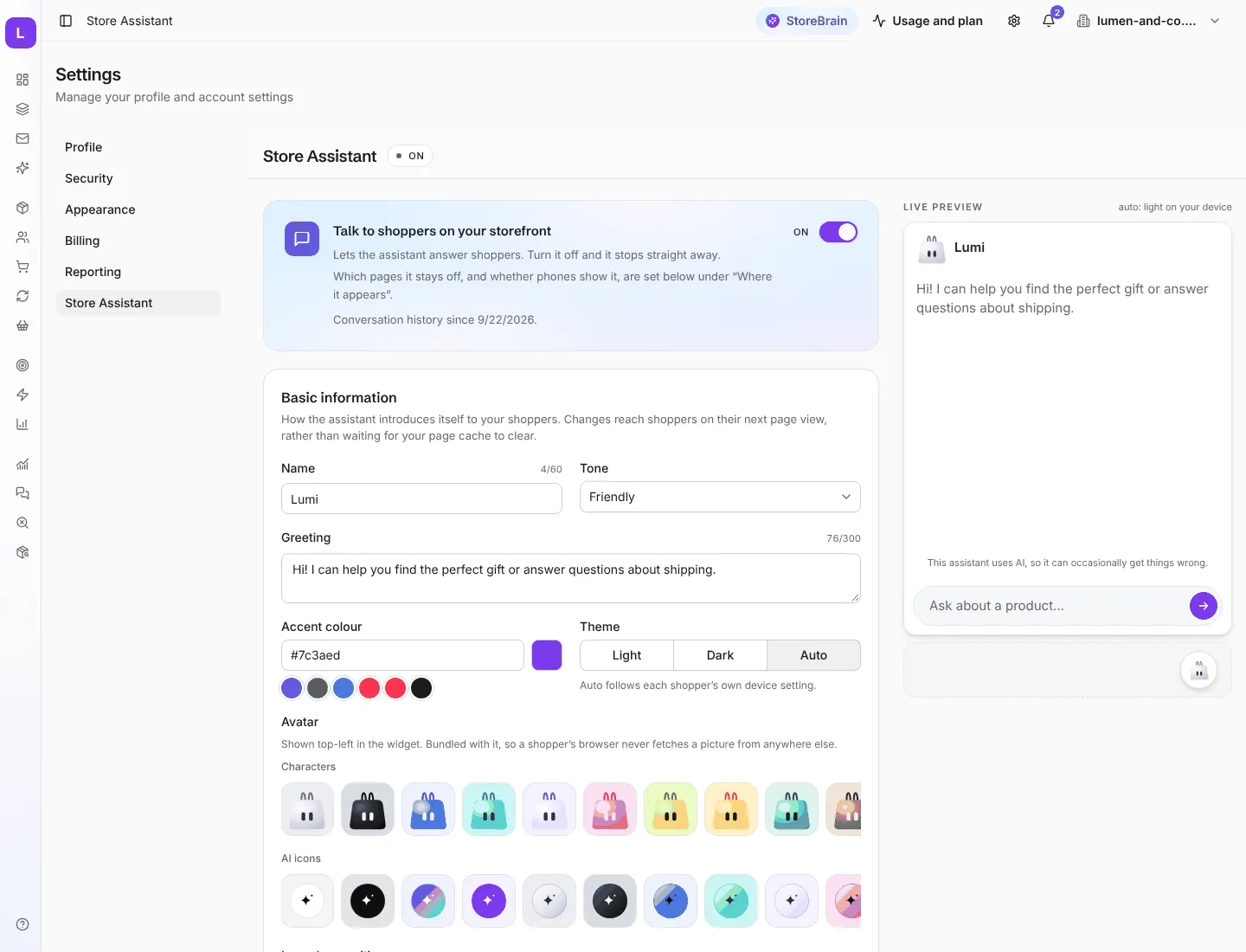
- Go to Settings → Store Assistant.
- Turn on Talk to shoppers on your storefront. Turn it off at any time and it stops straight away.
Make it yours
Section titled “Make it yours”Changes reach shoppers on their next page view. The live preview on the right shows your changes as you make them.
| Setting | What it does |
|---|---|
| Name | The name shoppers see, for example Lumi. |
| Tone | How it speaks, for example Friendly. |
| Greeting | The first message shoppers see. |
| Accent colour | The colour of buttons and highlights. Pick a swatch or enter a colour code. |
| Theme | Light, Dark, or Auto (follows each shopper’s device). |
| Avatar | A character or an AI icon, shown at the top left of the chat. |
Further down the page you can set:
- Suggested prompts: questions shoppers can tap to get started.
- Policies: your shipping and returns text, and links to your privacy policy and terms. The assistant quotes these exactly.
- Blocked topics: subjects it should not discuss.
- Where it appears: the position of the chat button, the pages it stays off, and whether it shows on phones. MerQio reads your published pages from your store, so you just tick the pages to hide it on.
Next: see what shoppers ask in Assistant Analytics.