
Integrations
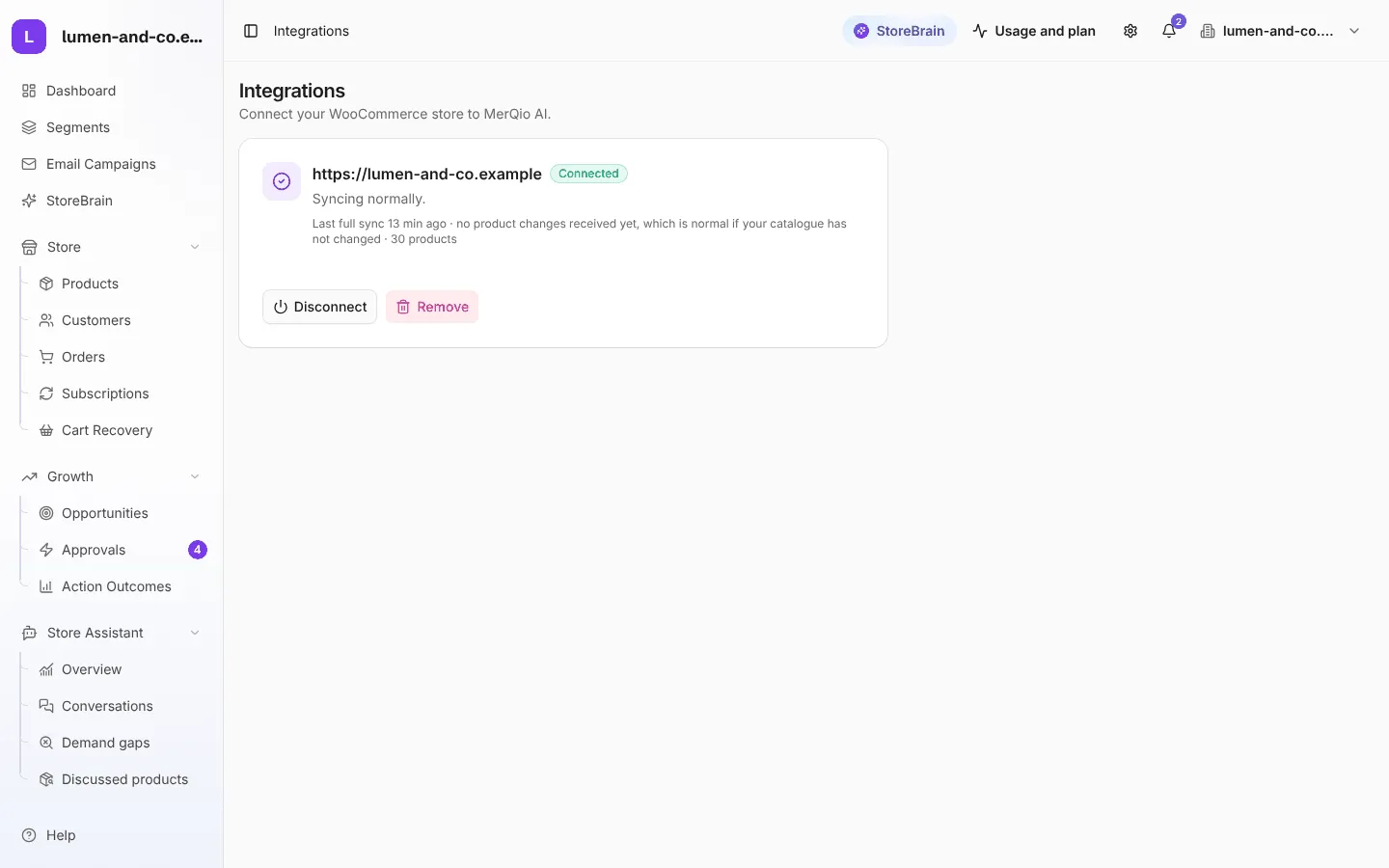
Integrations shows the WooCommerce store connected to this workspace and how its sync is doing. Open it from the store menu at the top right of the app (it shows your store’s name).
Connection status
Section titled “Connection status”The store card shows:
- the store address and a status badge, such as Connected or Disconnected,
- whether it is syncing normally,
- when the last full sync ran and how many products were checked.
If the MerQio Connector plugin is missing or not set up, a panel explains how to install it and press Connect Store in WordPress. See Connect your store.
Connect from MerQio instead
Section titled “Connect from MerQio instead”You can also start from MerQio: enter your store address, and MerQio sends you to your own WooCommerce to approve the connection. There are still no keys to copy.
Disconnect, reconnect or remove
Section titled “Disconnect, reconnect or remove”| Button | What happens |
|---|---|
| Disconnect | Pauses the connection. MerQio stops syncing, and everything already synced stays. |
| Reconnect | Resumes a paused connection. MerQio catches up on what changed. |
| Remove | Permanently deletes the store and all of its synced data: products, customers, orders and AI recommendations. |