
Custom segments
A custom segment is a group you define yourself, such as “VIP customers in the US” or “products under $30 with more than 50 in stock”. It stays up to date by itself.
Create a segment
Section titled “Create a segment”- Go to Segments and press Create segment.
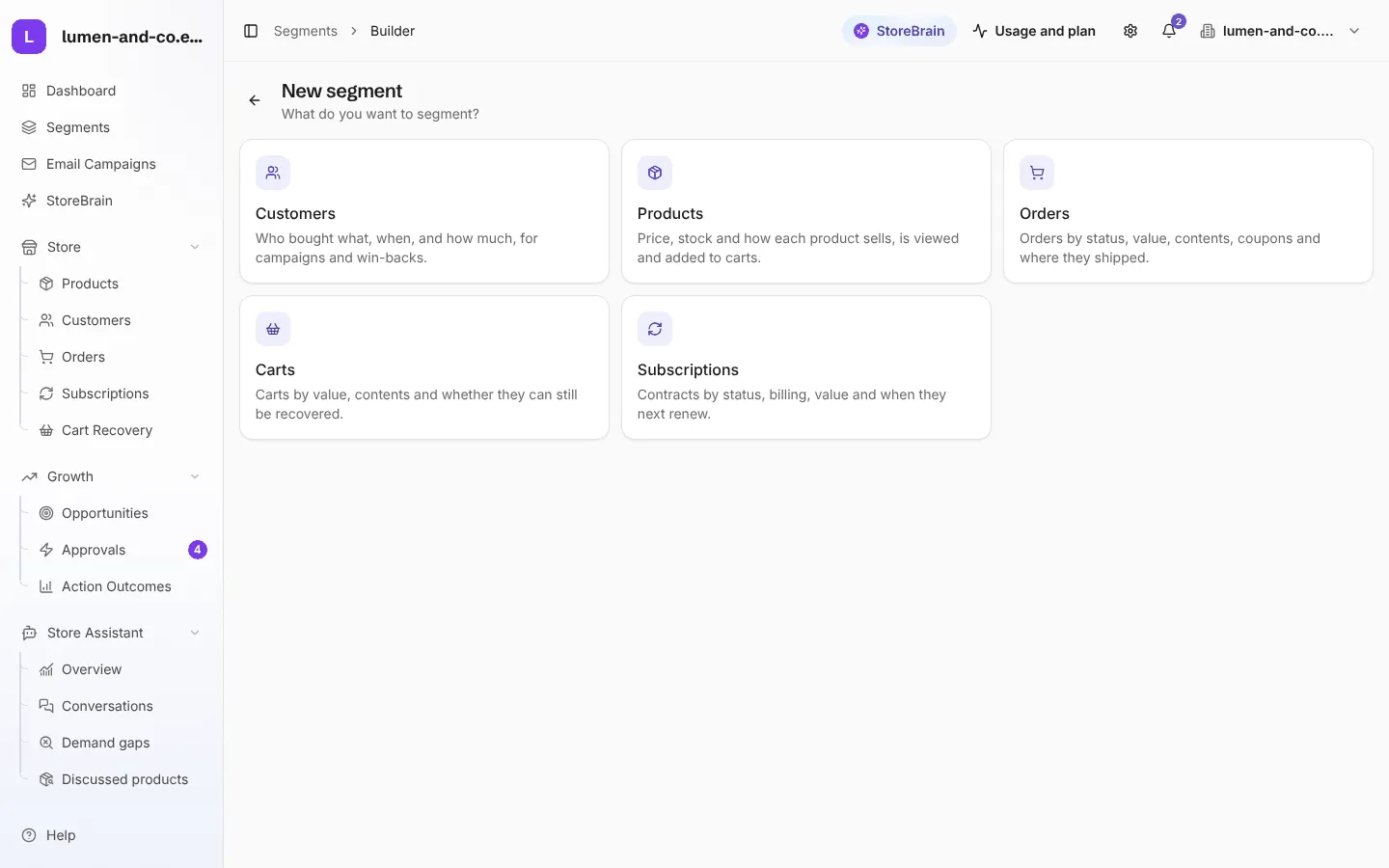
- Choose what you want to segment:
- Customers: who bought what, when, and how much. Good for campaigns and win-backs.
- Products: price, stock, and how each product sells, is viewed and is added to carts.
- Orders: status, value, contents, coupons and where they shipped.
- Carts: value, contents and whether they can still be recovered.
- Subscriptions: status, billing, value and when they next renew.
- Give the segment a name and, if you like, a description.
- Press Add condition. Start with something these records did (for example placed an order) or a property they have (for example country). Records must match every condition.
- Check the number of matching records, then press Save segment.
Your new segment appears in the Segments list with Source Custom. You can use it as a filter on the Products, Customers, Orders and Cart Recovery pages (Saved segments), as an email campaign audience, and with AI suggestions.
Edit or remove a segment
Section titled “Edit or remove a segment”Open the ⋯ menu on the segment and choose Edit conditions. Deleting a custom segment cannot be undone. Built-in segments cannot be deleted, only deactivated or removed from view.