
Segments
Segments are groups of customers, products, orders, carts and subscriptions. They update by themselves as your store changes. The same segment means the same thing everywhere in MerQio: on the lists, on the dashboard, in email campaign audiences and in StoreBrain.
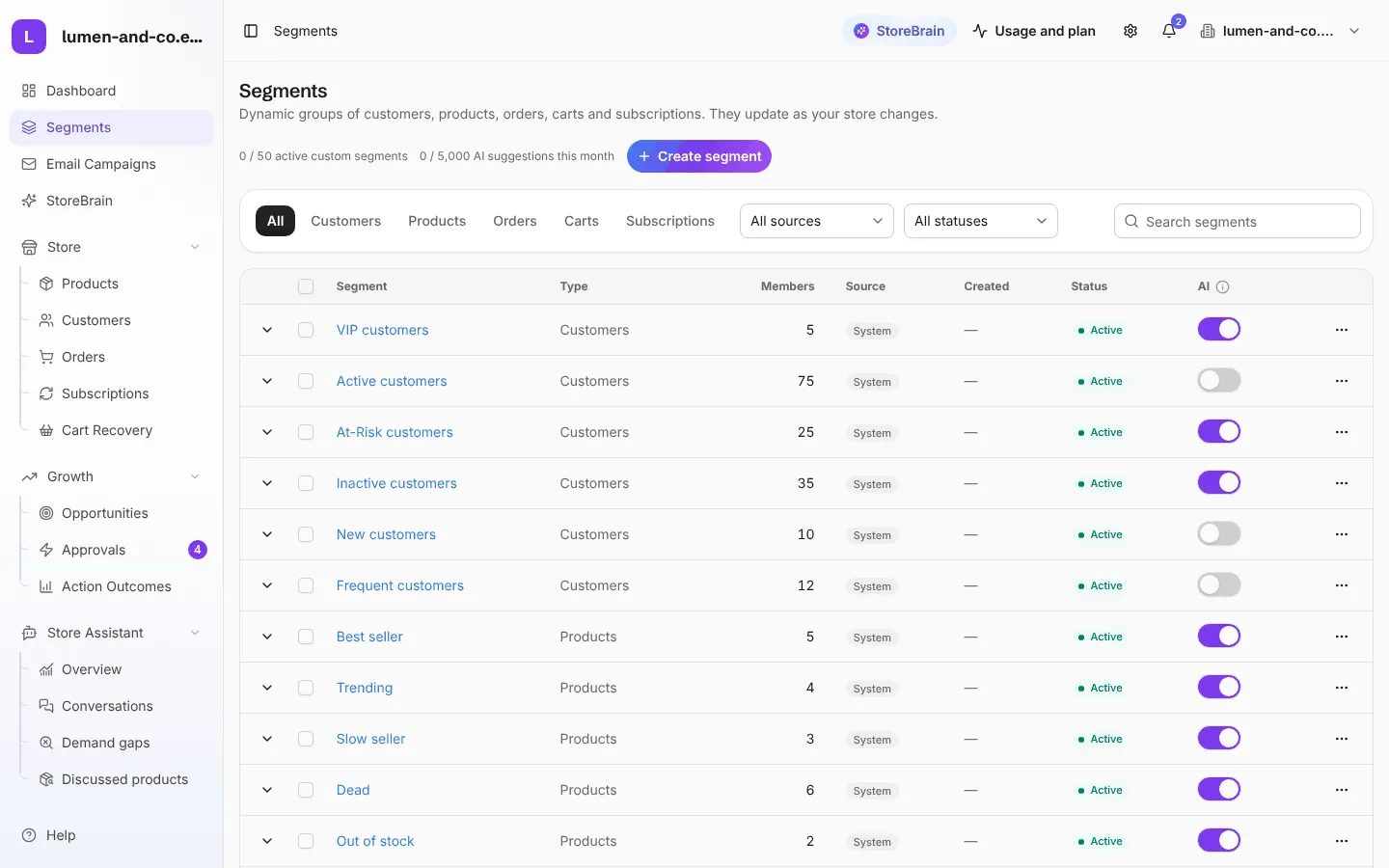
Built-in and custom segments
Section titled “Built-in and custom segments”- Built-in segments (Source: System) come with MerQio: VIP, Active, At risk, Inactive, New and Frequent customers; Best seller, Trending, Slow seller, Dead, Low stock and Out of stock products; and more for orders, carts and subscriptions.
- Custom segments are the ones you build yourself. See Custom segments.
The list shows each segment’s type, number of members, source, status and whether AI is on for it. Use the tabs to show only one type, and the menus to filter by source or status.
AI suggestions per segment
Section titled “AI suggestions per segment”The AI switch on each row decides whether the AI agents propose an action when someone joins (or leaves) that segment. For example, with AI on for At-risk customers, a customer moving into that segment can trigger a win-back proposal.
- You still approve every suggestion in Approvals first.
- Every AI suggestion uses this month’s AI allowance. The counter at the top (for example 0 / 5,000 AI suggestions this month) shows how much is left.
- Turn AI off on segments you do not need suggestions for, to save your allowance.
Change the rules
Section titled “Change the rules”Every built-in rule uses values you can change, because “dead stock” means something different for fashion than for furniture.
- On the Segments page, open the ⋯ menu on a built-in segment and choose Edit values.
- Change the values, for example the number of days without a sale before a product is Dead, or the spend a customer needs to become VIP.
- Not sure what fits? Press Suggest from my store to fill in values based on your own store (for example, your top 10% of customers).
- Press Save & re-classify. MerQio sorts everything again straight away.
For VIP you can also choose what counts: any purchase, a specific category or a specific product. For example, you can make VIP mean “big spenders on candles”.
Other row actions
Section titled “Other row actions”From the ⋯ menu you can also View members, and turn a segment off (deactivate) when you do not use it. Select several rows to switch AI on or off, or activate or deactivate them, all at once.