
Email Campaigns
Email Campaigns sends branded emails to your customer segments, such as a win-back email to At-risk customers or a thank-you offer to VIPs. You can write a campaign yourself, or approve one the AI drafted for you. Nothing is sent without your approval.
First, set up your sender
Section titled “First, set up your sender”Open the Setup tab and enter:
- From name: the name your customers see in their inbox, for example your shop’s name.
- From email: the address your emails come from. Use a real inbox you own, such as
hello@yourstore.com, so replies reach you.
Press Save.
Create a campaign
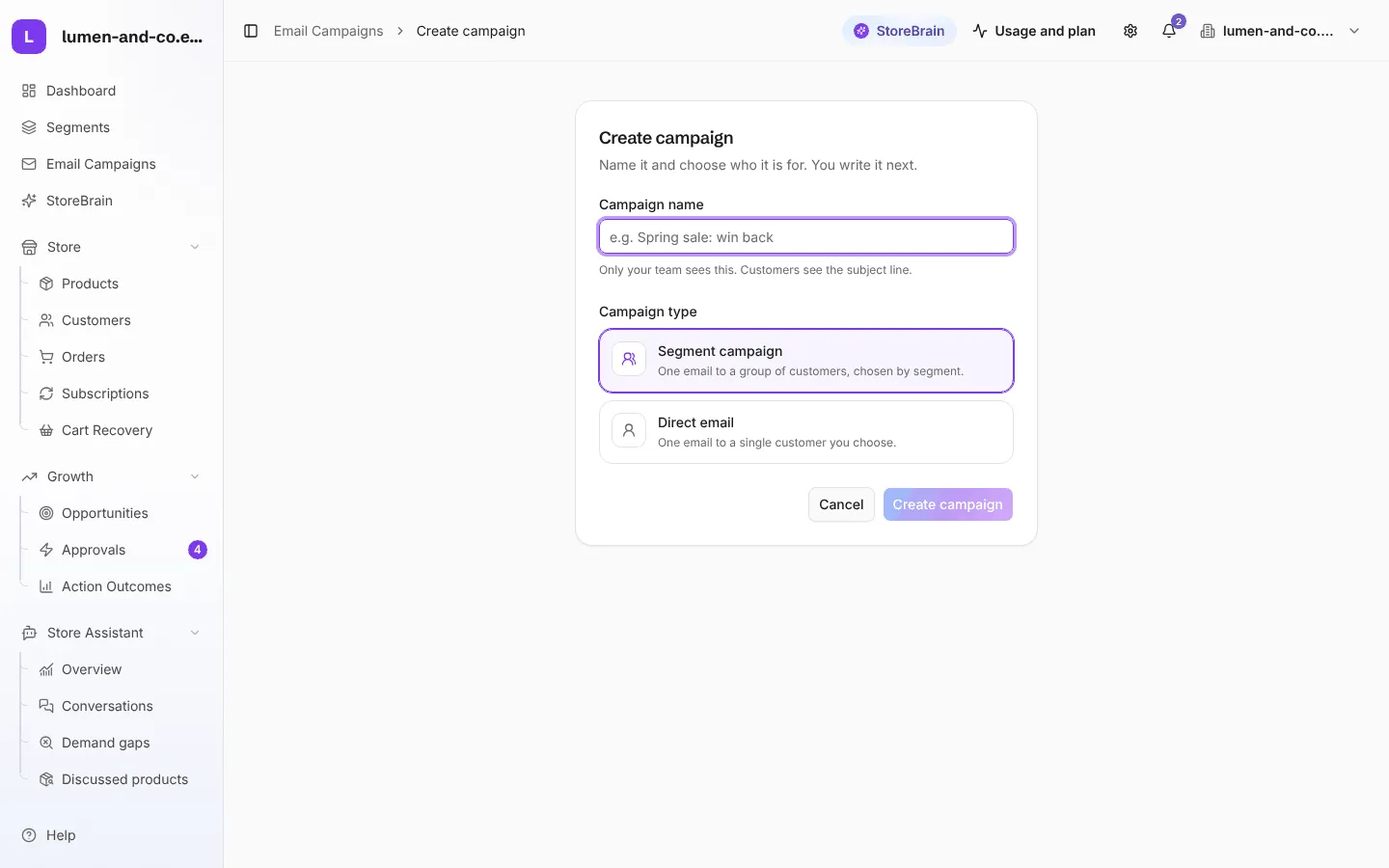
Section titled “Create a campaign”- Press New campaign.
- Give it a campaign name (only your team sees it) and choose the type:
- Segment campaign: one email to a group of customers, chosen by segment.
- Direct email: one email to a single customer you choose.
- Press Create campaign. The builder opens, and your work is saved as a draft as you go.
- Audience: choose the segment (or the customer). MerQio shows how many will receive it, and who is left out automatically: people with no email address, people who unsubscribed or bounced, and people your store emailed in the last few days, so nobody gets too much mail.
- Subject and Email: write the subject line and the message. Use Personalisation to add a personal touch for each customer. The preview shows the email as a real customer would see it.
- Offer (optional): add a percent off or free shipping, and how many days it is valid. A WooCommerce coupon is created only when you approve: one code for the campaign, one use per customer. A coupon also lets MerQio prove which orders the campaign brought in.
- Review & send: press Send test to me to check it in your own inbox, then Approve & send.
The tabs
Section titled “The tabs”| Tab | What it is for |
|---|---|
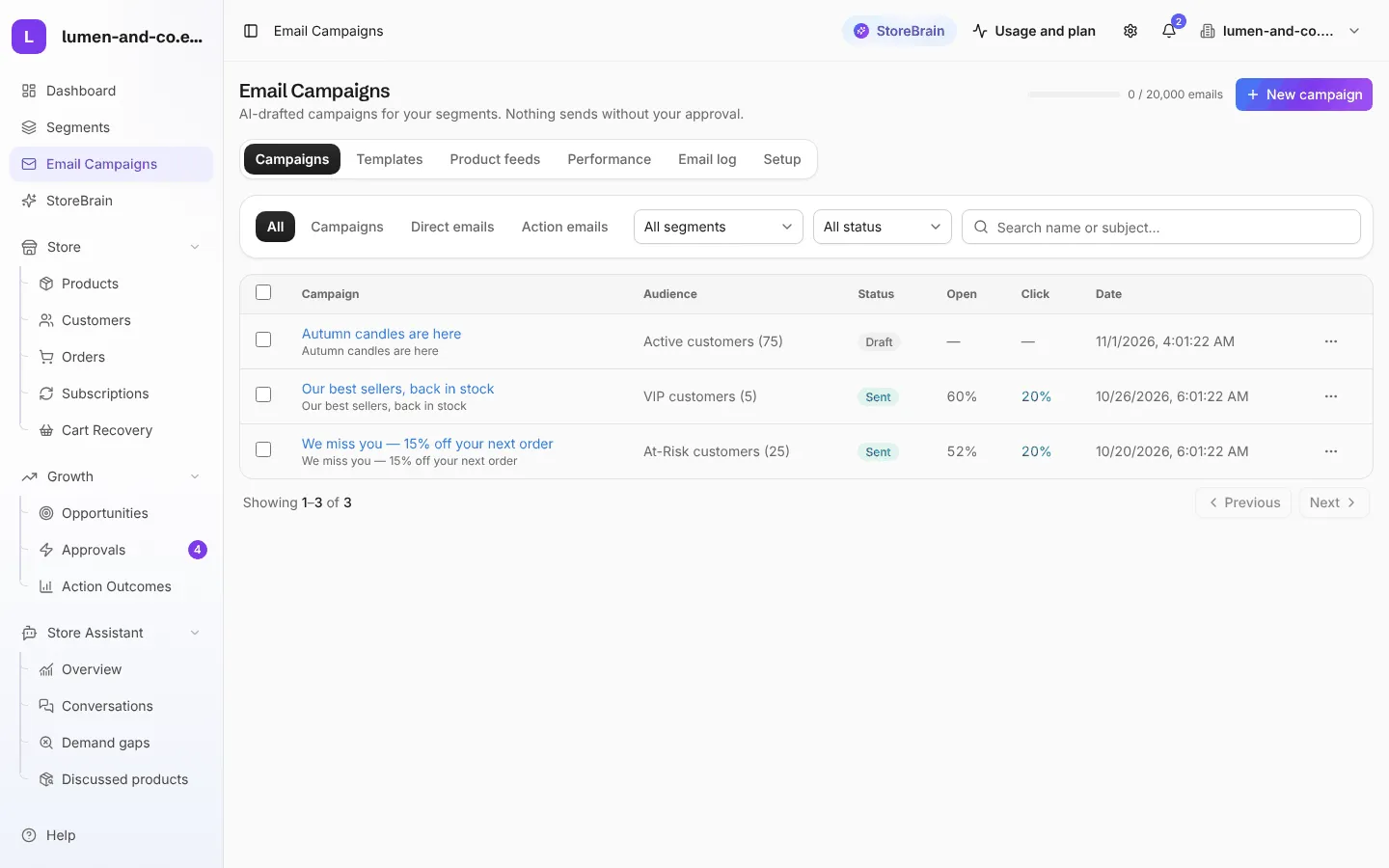
| Campaigns | All your campaigns with their audience, status (Draft, Sent and others), open rate, click rate and date. Filter by type, segment or status. Archive old campaigns from their ⋯ menu; their results stay in the report. |
| Templates | The design every email starts from: logo, colours and footer. Each audience and each action email has its own template. Open one to edit it, or create a new one from a copy. |
| Product feeds | Lists of products your emails can show, such as the newest products, your best sellers, or a category on sale. A feed updates itself as your catalogue changes. |
| Performance | Each campaign sent in the period, with its results, and the health of your sending: addresses you can no longer reach are suppressed automatically. |
| Email log | Every sent, failed and skipped email. |
| Setup | Your sender name and email. |
Campaign reports
Section titled “Campaign reports”Open a sent campaign to see its report: Overview (revenue, opens, clicks and the content that was sent) and Recipient activity (who received, opened and clicked). The revenue a campaign earned also appears in Action Outcomes.
Good to know
Section titled “Good to know”- Every email has a working unsubscribe link. People who unsubscribe or whose address bounces are never emailed again.
- The counter at the top right (for example 0 / 20,000 emails) shows how many emails your plan allows this month.