
Approvals
Growth → Approvals is where every proposed change waits for you. The AI plans the change, you approve it, MerQio applies it to WooCommerce, and then it measures what it earned.
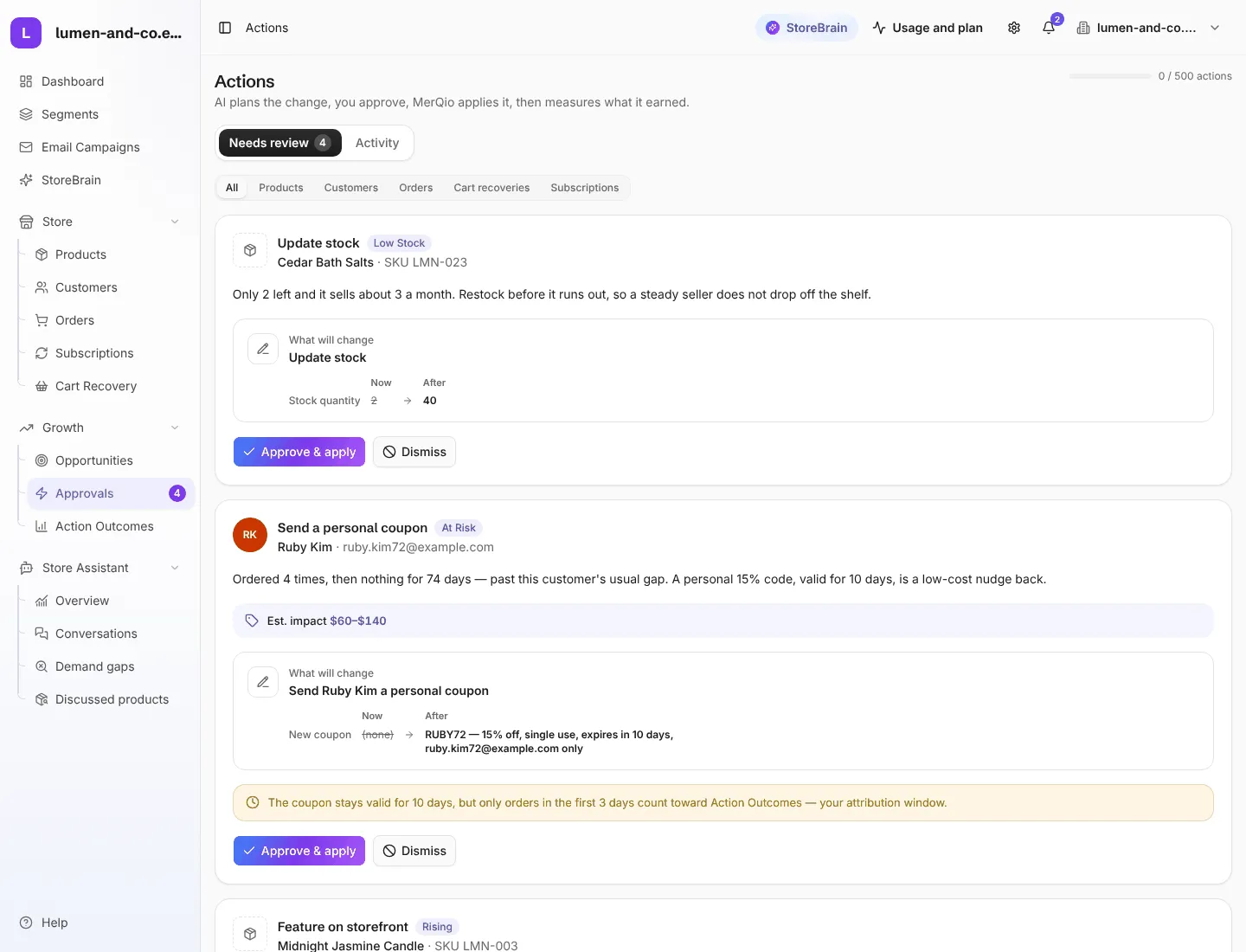
Read a proposal
Section titled “Read a proposal”Each card shows:
- What and who: the action (for example Send a personal coupon), the product or customer, and their segment (for example At risk).
- Why: the agent’s reason, written from the evidence. For example: “Ordered 4 times, then nothing for 74 days. A personal 15% code, valid for 10 days, is a low-cost nudge back.”
- Est. impact: the expected revenue range, when one can be estimated.
- What will change: the exact values Now and After, so you know precisely what will be written to your store.
Approve or dismiss
Section titled “Approve or dismiss”- Read the proposal and check What will change.
- For an email action, press Preview to see the email, and Edit to change its wording.
- Press Approve & apply to make the change, or Dismiss to skip it.
Use the tabs at the top: Needs review shows what is waiting, and Activity shows what has already been approved, applied, dismissed or undone. Filter by Products, Customers, Orders, Cart recoveries or Subscriptions.
What the agents can propose
Section titled “What the agents can propose”| Area | Actions |
|---|---|
| Products | update title, update description, set a sale price, update the regular price, set featured, set cross-sells, set upsells, set stock, set status, create a coupon |
| Customers | personal coupon (locked to the customer’s email, single use), win-back email, replenishment reminder, cross-sell email |
| Orders | thank-you note, delay notice, retention coupon after a refund, flag for review |
| Carts | recovery email with a one-click restore link |
| Subscriptions | dunning email, trial offer email, win-back email |
Safety limits and undo
Section titled “Safety limits and undo”- Safety limits. Every workspace has hard limits, such as the largest discount, the largest price change and the longest coupon. Both the AI and you work inside them. MerQio checks them again at the moment of applying, because your store may have changed since the proposal was made.
- Undo. MerQio saves the old values before every change. To undo one, open the Activity tab and choose Undo action on that row: the previous values are restored. An email that has been sent cannot be unsent, and MerQio says so instead of pretending.
- Checked against your store. After a change, WooCommerce tells MerQio that the product changed, and MerQio re-reads it to confirm the change really landed.