
Email reports
Settings → Reporting sends your store’s figures to your inbox, from the same numbers as your dashboard.
Turn reports on
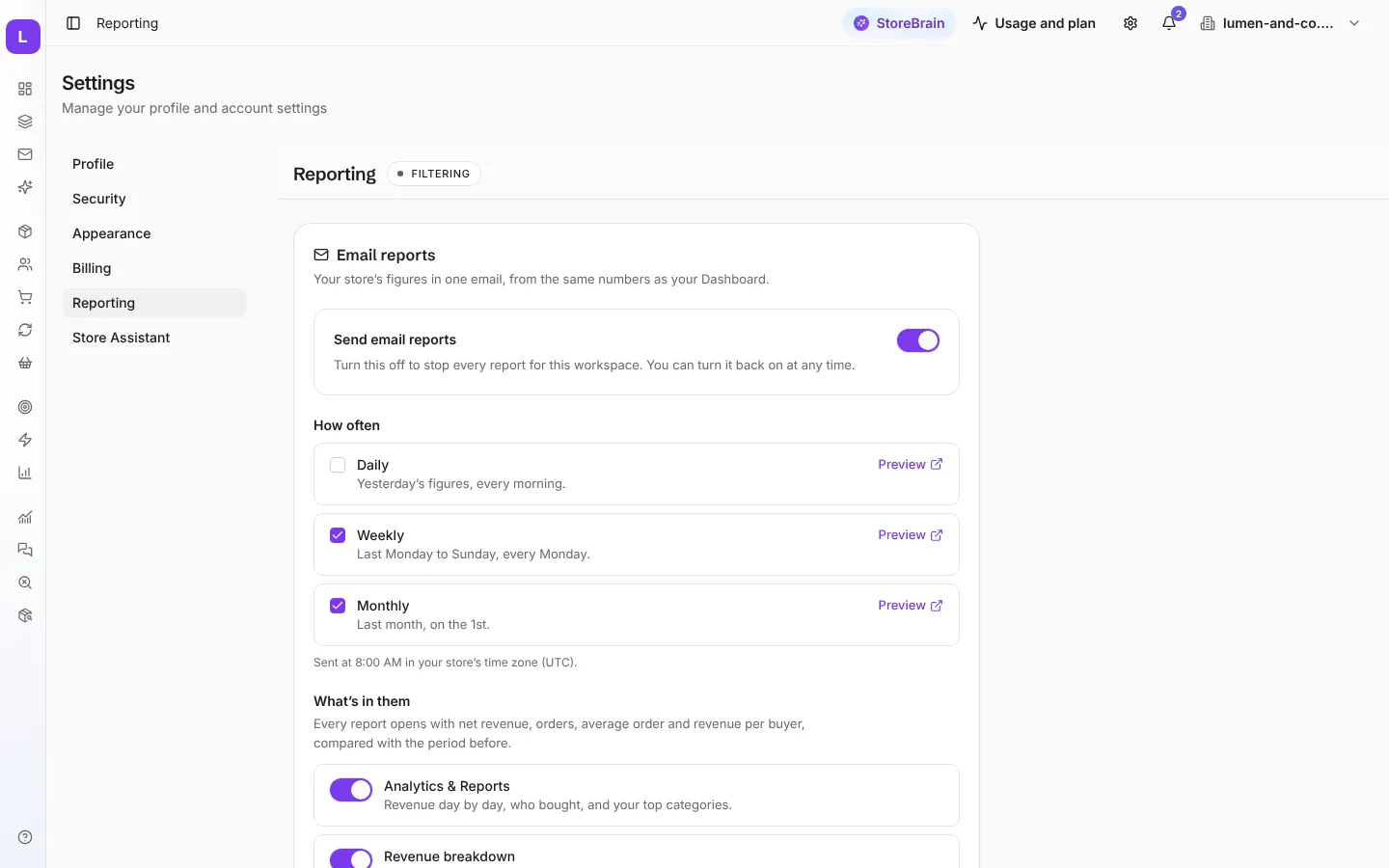
Section titled “Turn reports on”- Turn on Send email reports. You can turn it off at any time.
- Under How often, tick one or more:
- Daily: yesterday’s figures, every morning.
- Weekly: last Monday to Sunday, every Monday.
- Monthly: last month, on the 1st.
- Press Preview next to any option to see that report in your browser.
Reports are sent at 8:00 AM in your store’s time zone.
What’s in them
Section titled “What’s in them”Every report opens with net revenue, orders, average order value and revenue per buyer, compared with the period before. Then you choose which sections to include, such as:
- Analytics & Reports: revenue day by day, who bought, and your top categories.
- Revenue breakdown, and more sections further down the page.
Dashboard minimums
Section titled “Dashboard minimums”The Reporting page also holds the minimum revenue a category must reach to appear in the dashboard’s Top categories card. The value is set per 30 days and adjusted to the period you are looking at, so it stays equally strict on 7, 30 or 90 days.