
Connect your store
MerQio connects to WooCommerce through a small WordPress plugin, MerQio Connector. There are no API keys to copy and paste. You approve the connection on your own store, on WooCommerce’s own permission screen.
Before you start
Section titled “Before you start”- WordPress 6.0 or newer, with WooCommerce 7.0 or newer active
- PHP 7.4 or newer
- An administrator (or shop manager) account on your store
Connect in four steps
Section titled “Connect in four steps”- Install the plugin. In WordPress, install and activate MerQio Connector.
- Press Connect Store. Open MerQio in the WordPress admin menu (just below WooCommerce and Products) and press Connect Store.
- Sign in and approve. MerQio opens in a new tab. Sign in, or create an account, and choose your plan. WooCommerce then asks you to approve MerQio’s access to your store. Press Approve.
- Done. Go back to the plugin screen. It shows Store Connected by itself. Your data starts arriving in MerQio within seconds, and a progress bar shows each step: products, customers, orders, then classification.
Check the connection
Section titled “Check the connection”Open the store menu at the top right of the app (it shows your store’s name) and choose Integrations. A healthy store shows a green Connected badge and Syncing normally.
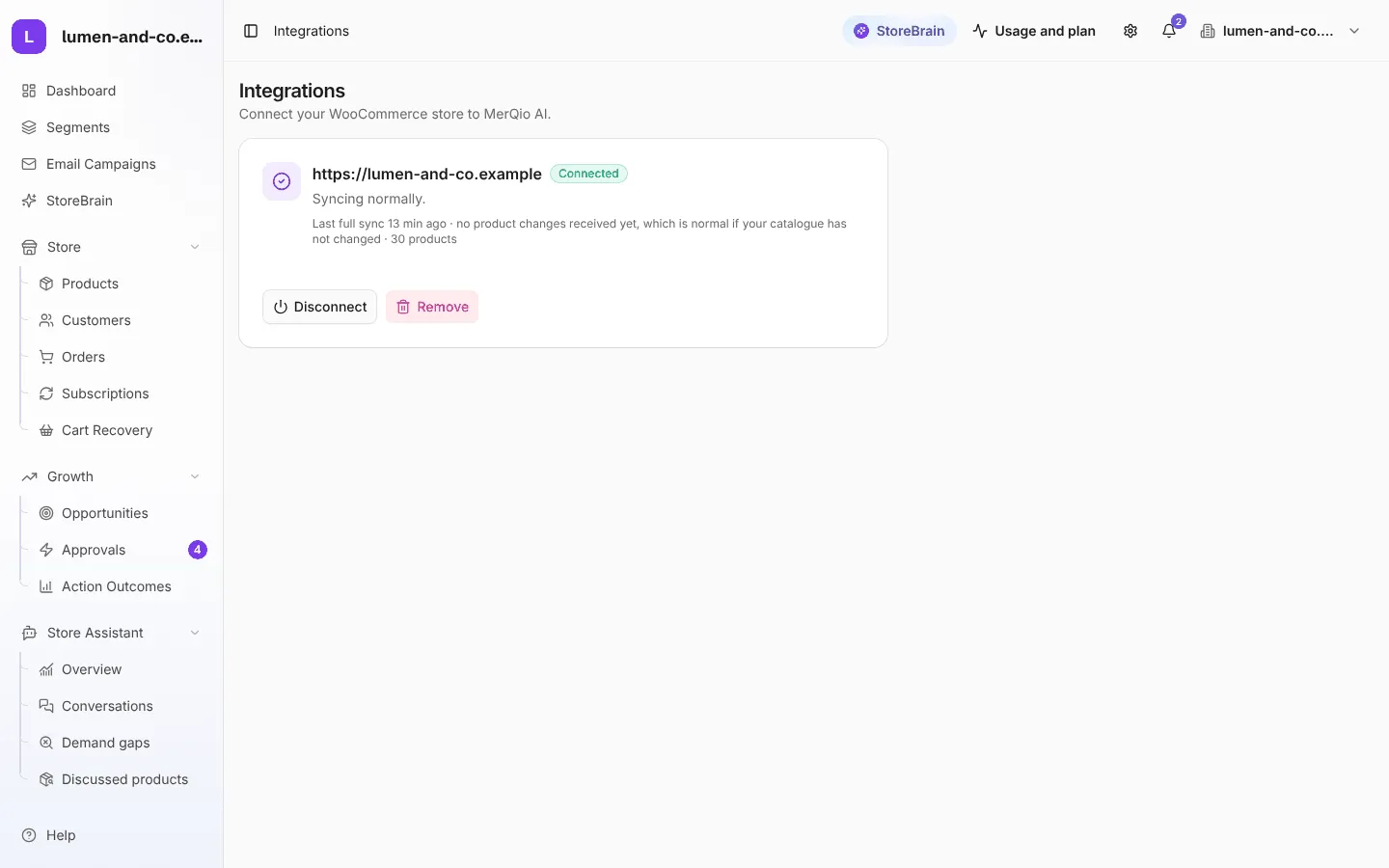
See Integrations for how to disconnect or remove a store.
What the plugin does, and does not do
Section titled “What the plugin does, and does not do”- It sends signed signals when products, orders or customers change. MerQio then re-reads the real record from WooCommerce.
- It tracks abandoned carts (after 60 minutes of no activity) and product views, which WooCommerce does not track itself.
- It stores no business data on your site, runs no analysis, and never edits your store by itself.
- If a signal fails to send, the plugin retries it. MerQio’s hourly check is the final safety net.