
Dashboard
The dashboard answers two questions in a few seconds: how is my store doing, and does anything need me right now?
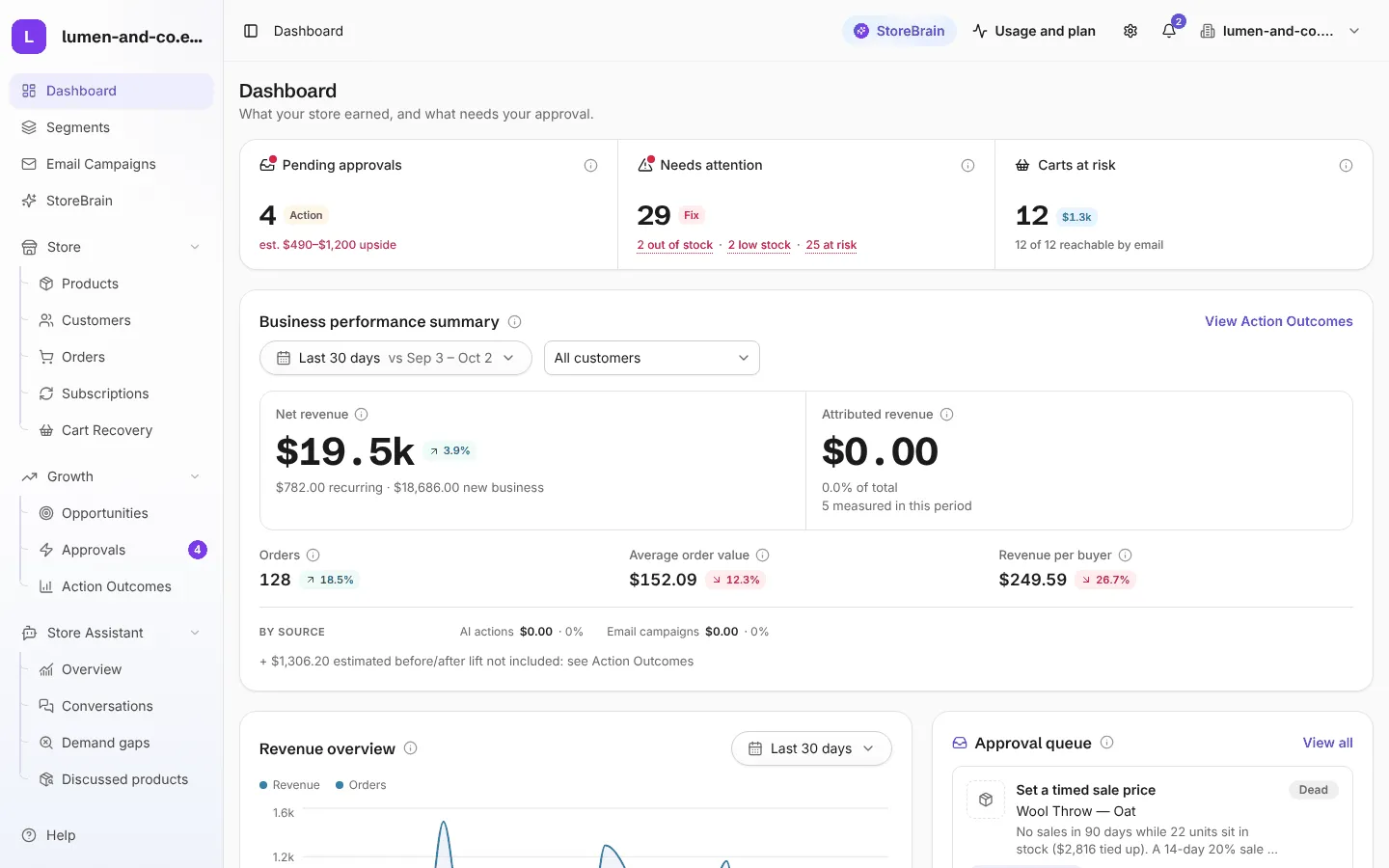
The three cards at the top
Section titled “The three cards at the top”| Card | What it shows |
|---|---|
| Pending approvals | Actions the AI agents have proposed and that are waiting for you, with their estimated upside. Nothing is written to your store until you approve. Opens Approvals. |
| Needs attention | Products out of stock or running low, and customers who moved to At risk. Each figure is a link to exactly the list it counts. |
| Carts at risk | Abandoned carts from the last 90 days that nobody has bought yet, their total value, and how many shoppers can be reached by email. Opens Cart Recovery. |
Business performance summary
Section titled “Business performance summary”This card shows your net revenue for the chosen period, compared with the period of the same length just before it.
- Net revenue counts the same orders WooCommerce Analytics counts by default (processing, on hold, completed and any status your plugins add), minus refunds. Pending, failed, cancelled and refunded orders are left out.
- Attributed revenue is the part of net revenue credited to your approved actions and email campaigns. Each order is counted once.
- Orders, Average order value and Revenue per buyer are shown underneath.
- Use the period menu (for example Last 30 days) and the customers menu to look at one segment only, such as VIP customers.
The rest of the page
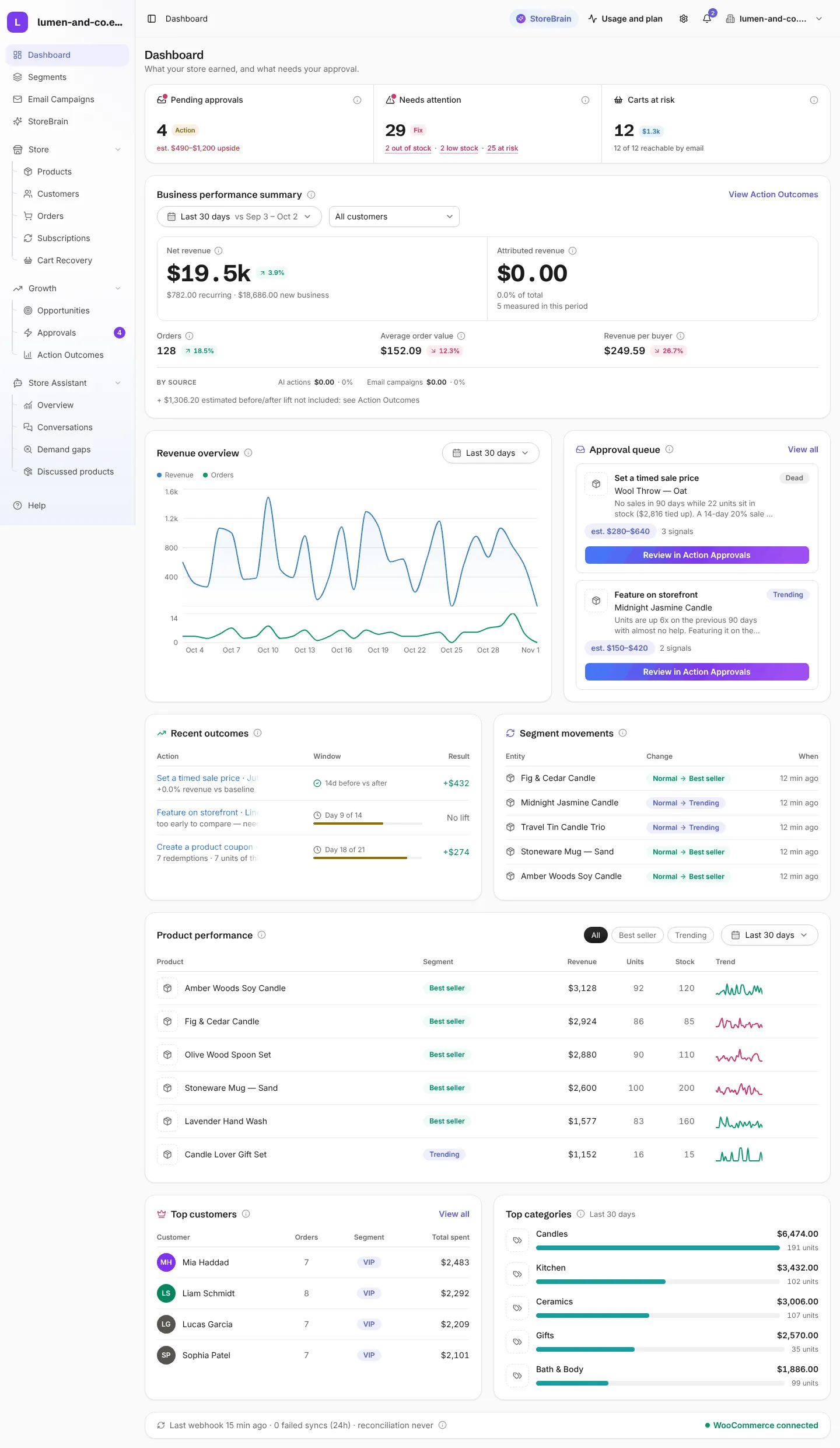
Section titled “The rest of the page”Scroll down for more cards. Each card has its own period menu and an ⓘ button that explains how it is counted.
| Card | What it answers |
|---|---|
| Revenue overview | Revenue and number of orders over time, net of refunds. |
| Approval queue | The next proposals waiting for you, with the evidence behind each. |
| Recent outcomes | What executed actions actually did, including when they did nothing. |
| Segment movements | Products and customers that recently changed segment. These moves are what trigger AI proposals. |
| Product performance | Revenue, units sold and stock for your products. |
| Top customers | Your highest-spending customers over the last 90 days, with their segment. |
| Top categories | Category revenue over the last 30 days. Set the minimum a category must reach in Settings → Reporting. |
| Sync health | When MerQio last heard from your store and whether anything failed. |
The top bar
Section titled “The top bar”- StoreBrain opens the AI chat. See StoreBrain.
- Usage and plan shows how much of this month’s allowance you have used.
- The bell opens your notifications, such as new proposals, measured results and sync problems.
- The store menu (your store’s name) switches workspaces and opens My plan, Integrations and Settings.